Monday, February 22, 2010

Photoshop Exercise #5 - Photocopy Filter


Photoshop Exercise # 4 - Fixing Perspective


  1. Open your photo in Photoshop
  2. Duplicate the Background layer by clicking Layer > Duplicate Layer
  3. Create a grid for aligning your image
    1. On the full version of Photoshop, click View > Show > Grid
    2. On Elements, Create a new layer (Layer > New Layer)
      Choose your Brush Tool
      Hold down the shift key and drag a horizontal line; release the mouse
      Click your mouse and then hold down the shift key and drag a horizontal line; repeat in horizontal and vertical stripes until you have enough of a grid to align your image.
  4. Make sure “Background Copy” is your active layer
  5. Begin Transforming:
    1. In the full version of Photoshop, Click Edit > Free Transform
    2. In Elements, Click Image > Transform > Free Transform
  6. Move your cursor off one of your corners and rotate the image until one edge is vertical (your image may work better if the straight edge is horizontal)
  7. In our example, the door has a perspective problem.
    Right Click (Ctrl Click in mac) and choose Perspective.
    Drag the upper right corner straight up so that the top edge of the door is parallel to one of your horizontal guides.
  8. In our example, this does not resolve all the perspective issues.
    Place your cursor in the middle of the right edge and drag down until you have an equal amount of perspective distortion at the top and bottom.
  9. Drag the upper right corner straight up so that the top edge of the door is parallel to one of your horizontal guides.
  10. Repeat steps 8 and 9 until the perspective tool has done all that it can
  11. Right Click (Ctrl Click in mac) and choose scale (or free transform)
    Drag the right edge out until the panel nearly fills the space.
  12. Right Click (Ctrl Click in mac) and choose distort
    Pull on the right hand corners until they are perfectly square.
  13. Hit the enter/return key to finish the transformation.
  14. Turn off your grid
    1. On the full version of Photoshop, click View > Show > Grid
    2. On Elements, make your grid layer your active layer and delete it.
  15. If you are finished with your image, flatten your image by clicking Layer > Flatten image.
  16. Save your work

Saturday, February 20, 2010

Bufflehead panorama


Exercise #3 - combining images using clipping paths


Note: In the full version of Photoshop, we can use layer masks to isolate a subject; In Photoshop Elements, there is no layer mask function for image layers, so we’ll be achieving the same effect using a Clipping Path.
  1. Choose two images and open both in Photoshop. One of these layers will be the background layer and the other will sit above. You may need to experiment to figure out which image works best as a background image.

    In our example, the skateboarder will be the background image.

  2. Make your background (skateboarder) image the active image.
  3. Create a new blank layer by clicking Layer > New > Layer
  4. Click Window > Swatches
  5. Click on one of the vivid colors in the swatch panel (preferably one which is not in your image)
  6. Take your rectangular marquee tool and draw a rectangle around the part of the image you wish to keep.
  7. Click Select > Inverse to outline everything except your rectangular area.
  8. Click Edit > Fill; fill with your foreground color at 100%
    Your canvas should be filled with the vivid color you chose in step 5.
  9. Click Select > Deselect to make your outline disappear.
  10. Use your polygon lasso, magnetic lasso, magic wand or quick select tool (newer versions of Photoshop & Elements) to begin outlining small portions around your subject.
  11. Click Edit > Fill; fill with your foreground color at 100%
  12. Repeat steps 10 and 11 until your subject is completely surrounded by your vivid color.
  13. If you make an error, use your eraser tool to remove excess color. Re-outline your subject and fill again.
  14. Make your other image the active image. In this example, it is the graffiti.
  15. Click Edit > Select All
  16. Click Edit > Copy
  17. Make your background image the active image
    with the vivid color layer as the active layer.
  18. Click Edit > Paste
    Your graffiti image should now cover the background image and vivid layer.
  19. Save your work.
  20. Create a clipping mask
      1. In Photoshop CS2 or newer, Click Layer > Create Clipping Mask
      2. In older versions of Photoshop, Click Layer > Group with previous
      3. In Photoshop Elements 8, Click Layer > Create Clipping Mask
      4. In earlier versions of Elements, Click Layer > Group with Previous
  21. Save your work.
  22. (Optional) Use your move tool to move your topmost layer to a desirable position.
  23. (Optional) Crop your image
  24. Save your work.

Friday, February 19, 2010

Photoshop Exercise # 2 – Creating an “old time image” with blurred edges

Edited Image
Original Image

  • Open your photo in Photoshop
  • Duplicate the background layer by clicking Layer > Duplicate Layer.
  • Blur your duplicate layer using the Gaussian Blur filter
    1. Click Filter > Blur > Gaussian Blur
    2. Set your blur to somewhere between 10 and 30 pixels – your image should look pretty blurry. Click OK.
  • Use your elliptical marquee tool to draw an oval around the part of the image you would like to keep sharp.
  • Feather the edges of your selection
    On newer versions of Photoshop, click Select > Refine Edge
    On older versions of Photoshop, click Select > Feather
    Set your Feather Radius to a soft amount between 30 and 50 pixels.
  • Cut out your elliptical selection by clicking Edit > Cut
  • Create a Hue/Saturation Layer by clicking Layer > New Adjustment Layer > Hue and Saturation
  • Reduce your saturation to -40 or -50%
  • Save your work as a psd or tiff to keep the layers
  • If you are finished with your image, flatten your image by clicking Layer > Flatten image.
  • Resave your work as a jpeg for sharing

Photoshop Exercise # 1 – Colorizing an image

Colorized image

Original Image
  1. Open your photo in Photoshop
  2. Click Window > Swatches
  3. Click on one of the colors in the swatch panel
  4. Click Layer > New Fill Layer > Solid Color
    1. Change the made from normal to color and click OK
    2. Adjust your color to a desirable color in the color picker and click OK
  5. If you are finished with your colorizing, flatten your image by clicking Layer > Flatten image.

Sunday, February 14, 2010

Focus


Experimenting with shallow depth of field at Mercer Slough.

Friday, February 12, 2010

northwest winter light


shapes


it's all about viewing life
where you look
what you see
we each "see" differently!
thank goodness for difference!!!

color on water


Tuesday, February 09, 2010

Our fearless leader

Michele taught a couple classes on Avian Photography at the Mercer Slough Environmental Education Center in Bellevue recently. Here are a few photos from Saturday. As usual, she WOWED the group with her technical expertise and infinite knowledge of how to use all the different cameras... AND explained things so everyone could understand! It's a gift!


Sunday, February 07, 2010

MY DISTORTED FAMILY


These are "Distorted" Family Pictures. We had lots of fun and laughs working on my project for this next class. Hope you like them too! A day trip to the local pet shop and an empty fish bowl became the inspiration followed by anything we could find when we got home! Scaaaaarrrrry!!!!!

Tuesday, January 19, 2010

LIFE photographer Gjon Mili photos of Picasso in 1949

LIFE photographer Gjon Mili visited Picasso in 1949. Mili showed the artist some of his photographs of ice skaters with tiny lights affixed to their skates jumping in the dark—and Picasso's mind began to race. The series of photographs that follows—Picasso’s light drawings—were made with a small flashlight in a dark room; the images vanished almost as soon as they were created.


3 views of the same scene

f 2.8 - focused through the mat on the flowers. Note that the background is black, not red. The mat is red.

f 22 focused on the flowers

f 32 - focused on the mat

A trip to the Dog Park


Saturday, January 16, 2010

indoor action


to begin again in the New Year,
one thinks of special handmade gift.
after carefully wrapping,
a special card needs to be created.
for this special New Year gift.
Happy New Year to all!

Thursday, January 14, 2010

If at first you don't succeed...


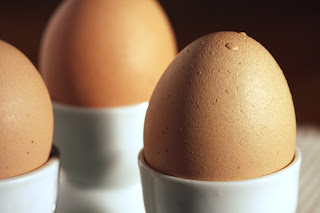
Here's the sequence of what I learned.
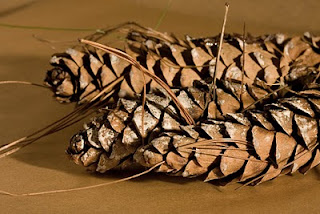
1.I brought the outdoors inside using a tungsten 3200K light with a white board fill. I shot a white paper to set the custom white balance for my camera but it didn't work--not sure why.
2. I then hoped to use the Adobe Camera Raw white balance tool but found that when I shot in Macro, I got JPEG images which don't open in Adobe Camera RAW.
3. That leaves Photoshop where I planned to adjust color on the white paper photo then drag the settings to the other photos. That worked but not successfully, probably because the white paper was not in the exact same place as the eggs & cones so the lighting was not the same.
4. Having maxed out my knowledge, I fell back on my improv skills and eyeballed the color using Photoshop desaturation and color balance tools to approximate reality: hold up the egg, compare with the image, adjust the color a bit more...

Tuesday, January 12, 2010

Green Fairy's new friend, Martini Mermaid

This wonderfully robust mermaid was part of a fun window display in a shop at the Minneapolis Airport (where I had a 3 hour layover). Of, course I had to get her photo so the Green Fairy would know she has a friend... a friend who obviously likes to enjoy herself too. Bottoms up!

Monday, January 11, 2010

Learning Adobe CS4


Paint & Brushes watercolored by Adobe CS4 and Next years Christmas Card!